How Computers Work: A Bottom-Up Explanation
Starting with a Key Press
You press the letter ‘A’ on your keyboard.
In less than 1 millisecond, the character appears on screen.
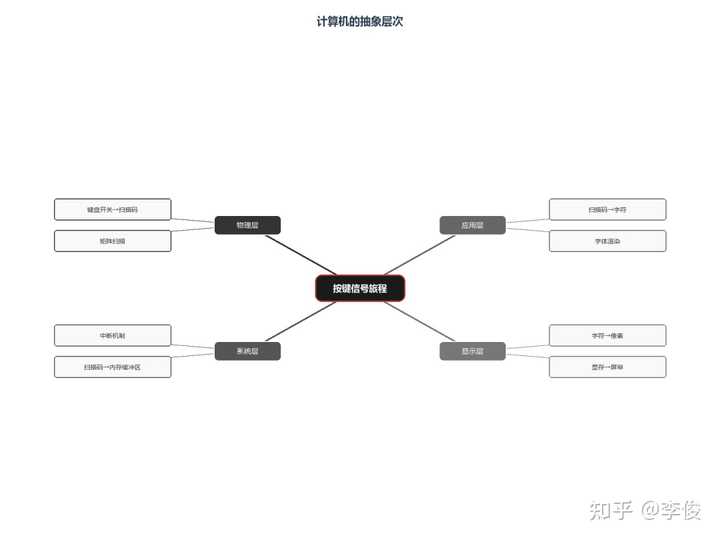
Seems simple? In reality, within that 1 millisecond, an electrical signal traverses at least 6 layers of abstraction, passes through dozens of hardware components, and crosses multiple buses to complete this “simple” interaction.
The essence of computers is not computation, but abstraction.
Each layer hides the complexity below and only exposes a clean interface to the layer above. It is because of these abstractions that programmers can write code in high-level languages without caring about how electrons flow through transistors.
Today, we trace the complete journey of a keypress signal, seeing how computers, through layer upon layer of abstraction, transform a physical action into a character on screen.
Layer One: From Physical Signal to Scan Code
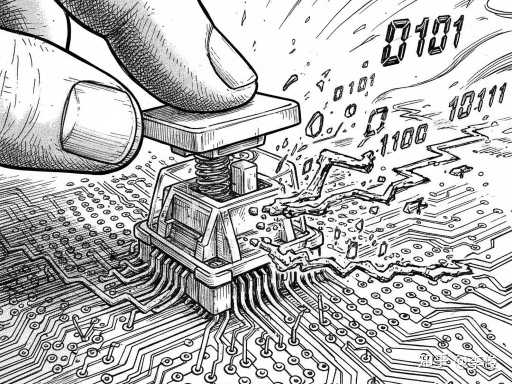
What you press is not a letter, but a switch.
Beneath every key on the keyboard is a mechanical switch. When you press the ‘A’ key, the switch closes and current flows. This is the bottom-most physical reality — only on and off, no ‘A’.
The keyboard controller’s job is to translate this physical signal into numbers that the computer can understand.
How does it do this?
Matrix Scanning
Over 100 keys on a keyboard. If each one had its own wire connected to the computer, the keyboard cable would be thicker than your finger. So the keyboard uses a clever design: matrix scanning.
Imagine a chessboard, with row lines and column lines crossing. Each key sits at an intersection. The controller rapidly energizes each row and detects whether there is current on each column. If column 5 detects current when row 3 is energized, that means the key at row 3, column 5 has been pressed.
This is where the scan code comes from — a number that represents the position of a key.
Pressing ‘A’ might output scan code 0x1E. Releasing ‘A’ outputs 0x9E (with an extra high bit indicating “release”).
Layer one complete: physical action → digital encoding.
But it is not over yet. The scan code is still sitting in the keyboard’s internal buffer, waiting to be sent out.
Layer Two: From I/O Device to Memory
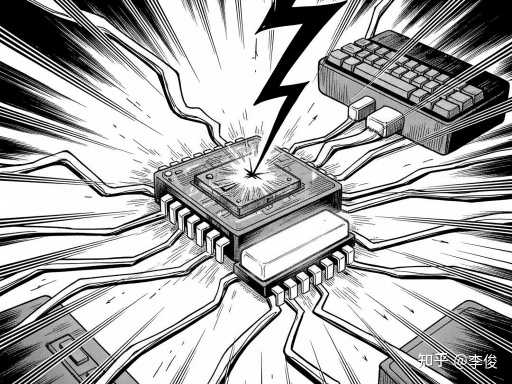
The scan code needs to reach the CPU, but the CPU cannot just sit around waiting for keyboard input.
The CPU runs at billions of operations per second; keyboard input comes in at tens of inputs per second. If the CPU checked “is there keyboard input?” before every instruction, 99.9999% of its time would be wasted.
What is the solution? The interrupt mechanism.
Interrupts: The Hardware Version of “Ring Me When You’re Ready”
The design philosophy of interrupts mirrors everyday life: you do not call the delivery driver every 5 minutes asking “has my package arrived?” Instead, the driver calls you when they arrive.
After the keyboard controller generates a scan code, it sends an Interrupt Request (IRQ) signal to the CPU.
This signal goes through the interrupt controller (8259A or its modern equivalent) and is assigned an interrupt number. The keyboard is typically IRQ1, interrupt number 0x21.
After executing every instruction, the CPU checks for interrupt signals. If there is one, it pauses its current work and handles the interrupt.
The Interrupt Vector Table
How does the CPU know how to handle a keyboard interrupt?
In memory, there is an Interrupt Vector Table that stores the address of the handler routine for each interrupt number. It is like a phone book: interrupt number 0x21 corresponds to the address of the keyboard handler.
When the CPU receives a keyboard interrupt:
- Push the current Program Counter (PC), status register, etc. onto the stack
- Look up the table using the interrupt number to find the handler address
- Jump to the handler and execute it
The keyboard handler reads the scan code through an I/O port (typically 0x60), then stores it in the keyboard buffer in memory.
Layer two complete: I/O event → in-memory data.
Now the scan code is safely lying in memory. But it is still a scan code, not the character ‘A’.
Layer Three: From Scan Code to Character
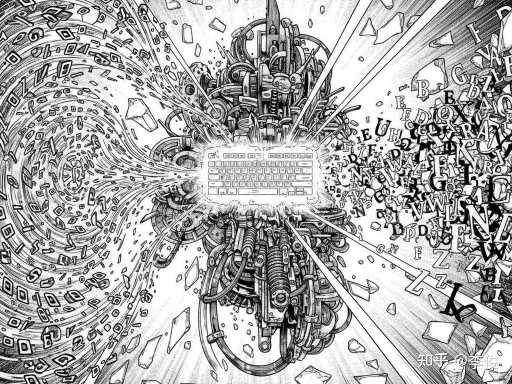
Scan code 0x1E represents “the position of the A key on the keyboard,” not the character ‘A’.
Why? Because the same key might represent different characters on keyboards in different countries. Americans press it and get ‘A’; the French press it and get ‘Q’ (their keyboard layout differs).
The operating system is responsible for converting scan codes into characters.
The Input Subsystem
Modern operating systems all have an Input Subsystem, which handles:
- Reading scan codes from the kernel buffer
- Converting them to characters based on the current keyboard layout
- Handling modifier keys (Shift+A = capital ‘A’, Ctrl+C = copy command)
- Delivering the character to the currently active window
This conversion involves a keyboard layout mapping table. The Windows registry contains HKEY_LOCAL_MACHINE\SYSTEM\CurrentControlSet\Control\Keyboard Layouts, which stores the mapping for various languages.
After conversion, the character ‘A’ is placed in a message queue, waiting to be read by the application.
Layer three complete: hardware-dependent encoding → unified character encoding.
Layer Four: From Character to Pixel
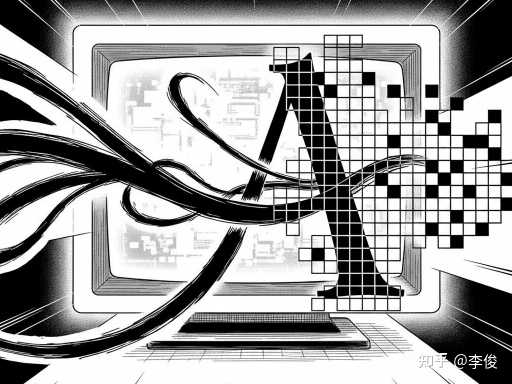
The application receives the character ‘A’ and needs to display it on screen.
But what you see is not a character — it is pixels.
A monitor only understands pixels — what color each point is. The character ‘A’ is a pattern made up of a set of pixels, stored in a font file.
Font Rendering
When you type ‘A’, the application will:
- Look up the font file (e.g., Microsoft YaHei, SimSun)
- Get the glyph description for ‘A’ (vector curves or bitmap)
- Scale the glyph according to the font size
- Rasterize: convert the vector curves into a pixel grid
- Apply anti-aliasing for smoother edges
These pixel data are written to video memory (VRAM), which is the memory on the graphics card.
From VRAM to Screen
The display controller on the graphics card reads data from VRAM at 60 times per second (60 Hz), converts it to a video signal, and sends it to the monitor.
The monitor receives the signal, controls the color of each pixel, and you see the character ‘A’.
Layer four complete: character encoding → pixel matrix.
Layer Five: How the CPU Executes These Instructions
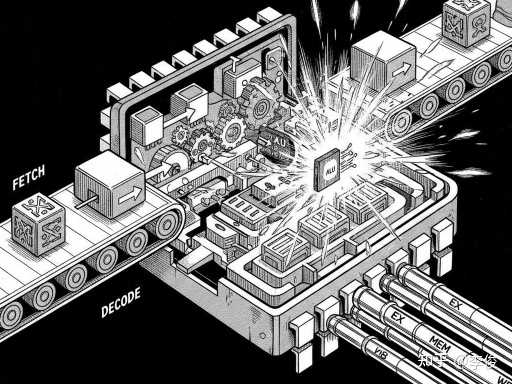
All of the operations mentioned above — scanning, interrupts, conversion, rendering — ultimately need to be executed by the CPU.
How does the CPU execute instructions?
The Instruction Cycle: Fetch-Decode-Execute
Executing an instruction has three stages:
-
Fetch
- The Program Counter (PC) stores the address of the next instruction
- Send the address to memory, retrieve the instruction
- Store the instruction in the Instruction Register (IR)
-
Decode
- The control unit parses the instruction’s opcode
- Determines what operation to perform (addition? load? jump?)
- Determines where the operands are
-
Execute
- The Arithmetic Logic Unit (ALU) performs the computation
- Or accesses memory to read/write data
- Updates the Program Counter
Then repeat.
An Example
Suppose the CPU needs to execute ADD R1, R2, R3 (add the values in R2 and R3, store in R1):
- Fetch: Read the machine code for this instruction from memory
- Decode: Recognize this as an add instruction, operands in R2 and R3
- Execute: The ALU sends the values of R2 and R3 to the adder, writes the result to R1
Each instruction completes in nanoseconds.
Layer five complete: high-level language → machine instructions → electrical signals.
The Cost of Abstraction
Abstraction is not free.
Each layer of abstraction comes with performance overhead:
- Keyboard scanning: a few microseconds
- Interrupt handling: tens of microseconds
- OS conversion: hundreds of microseconds
- Font rendering: a few milliseconds
- VRAM write: a few microseconds
All together, this is the “input lag” you experience, typically between 10 and 50 milliseconds.
For an ordinary person, this lag is negligible. But for esports players, it is a life-and-death difference. That is why they use mechanical keyboards (faster actuation), high refresh rate monitors (144 Hz+), and wired connections (wireless adds extra latency).
A Takeaway
The essence of computers is abstraction: encapsulate complexity, expose only a simple interface.
The journey of a keypress signal:
Physical switch → scan code → interrupt → memory buffer → character encoding → message queue → font rendering → VRAM → pixel
Each layer does only one thing: receive the simplified output from the layer below, process it, and provide a simplified interface to the layer above.
It is precisely this layered abstraction that allows humans to master incredibly complex computer systems.
Programmers do not need to know how the keyboard scanning works — they only need to read the return value of getchar().
Programmers do not need to know how the graphics card renders — they only need to call the DrawText() function.
The power of abstraction is making complexity manageable.